850SOCIAL

For DJs · Free

850social for VirtualDJ

Play a song in VirtualDJ and it shows up on your 850social page a few seconds later, with what’s up next and everything you played tonight. Fans can request a song right from the card.

Now playing

September

Earth, Wind & Fire

Up next

  1. Shut Up and Dance · Walk the Moon
  2. Levitating · Dua Lipa
Request a song

Example · what fans see on your page

What it does

On the decks now

The song on air shows live on your page. Songs you only cue in your headphones stay private.

Up next

Your next songs from automix, or the one waiting on your other deck. Want it a surprise? Turn it off on your dashboard.

Requests that clear themselves

When you play a song someone requested, it’s marked played on its own. No more scrolling the list mid-set.

Get set up

  1. 1

    Claim or make your DJ page

    Already listed? Find yourself on Bands & DJs and tap “Is this you?” to claim your page. Not listed yet? Make your free page.
  2. 2

    Make your private key

    On your dashboard, find Now playing from VirtualDJ and click Make my key, then Copy key. It only connects VirtualDJ to your page, and you can turn it off any time.
  3. 3

    Connect VirtualDJ

    Use the plugin if you have VirtualDJ Pro, or the helper app on any version. Both are below.

Downloads

VirtualDJ Pro

The plugin

Runs inside VirtualDJ with its own 850social panel, so there’s nothing else to open. Sends each song about 20 seconds after it goes on air.
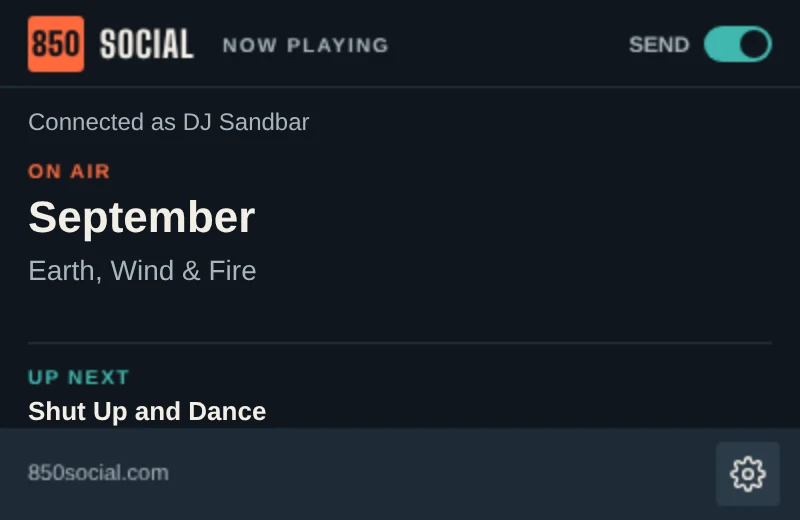
The 850social panel inside VirtualDJ, showing the song on air and up next
  1. Close VirtualDJ. Unzip the download into Documents/VirtualDJ/Plugins64/AutoStart. On a Mac with an Apple chip, use PluginsArm/AutoStart.
  2. Open VirtualDJ, go to Settings → Extensions and open the 850social Now Playing panel.
  3. Click the gear, then Paste key. The status line says Connected.
Any VirtualDJ, free too

The helper app

A small app you leave open next to VirtualDJ. It reads VirtualDJ’s play history, so it works on every version.

  1. In VirtualDJ, go to Settings → Options, search for writeHistory and set it to Yes.
  2. Unzip and open the helper. Paste your key when it asks. It remembers it for next time.
  3. Leave its window open while you play.

The helper sends a song once VirtualDJ adds it to history, usually about a minute in. Turn on VirtualDJ’s Network Control plugin (Pro) for faster updates and up next.

The 850social skin

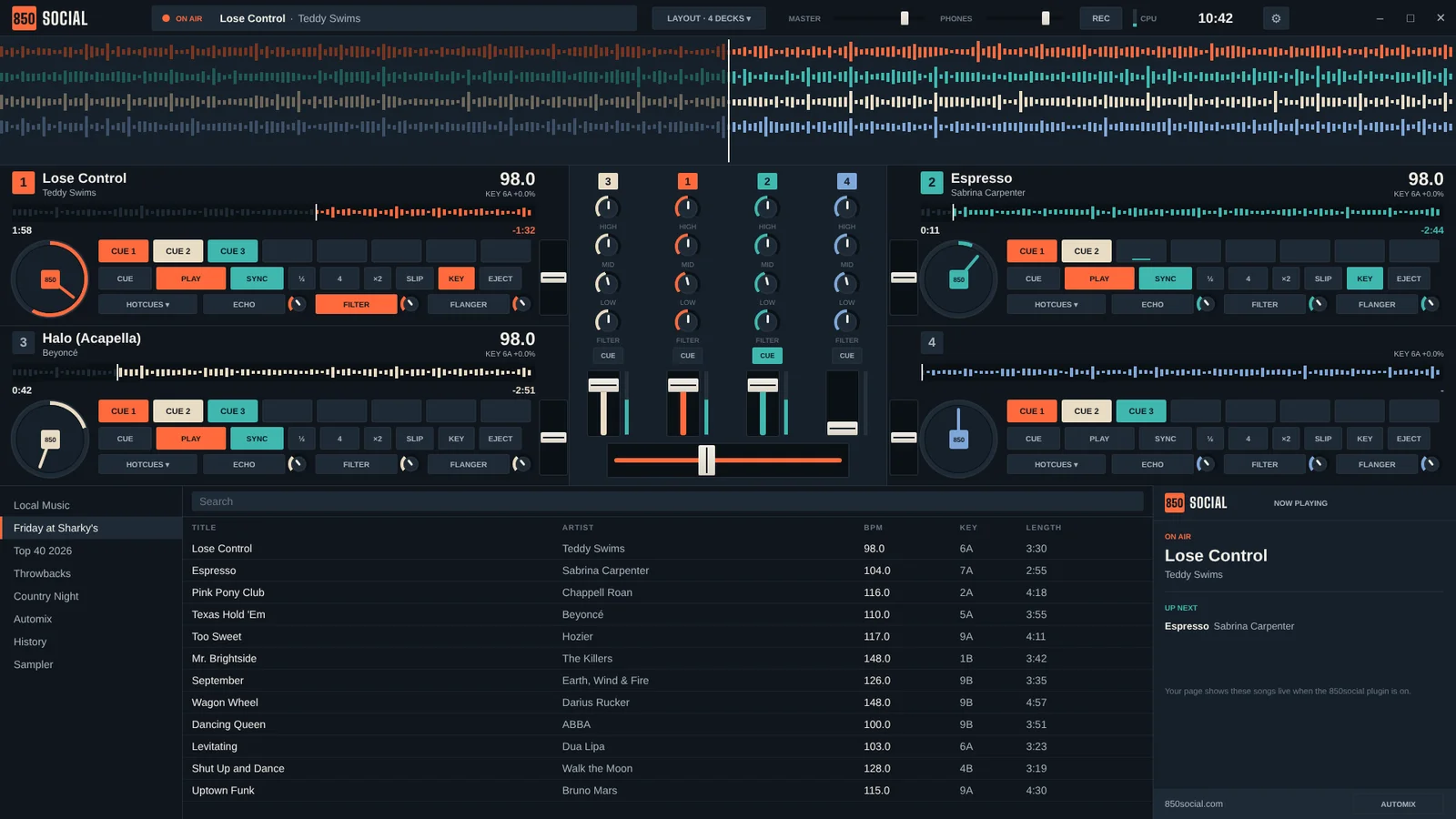
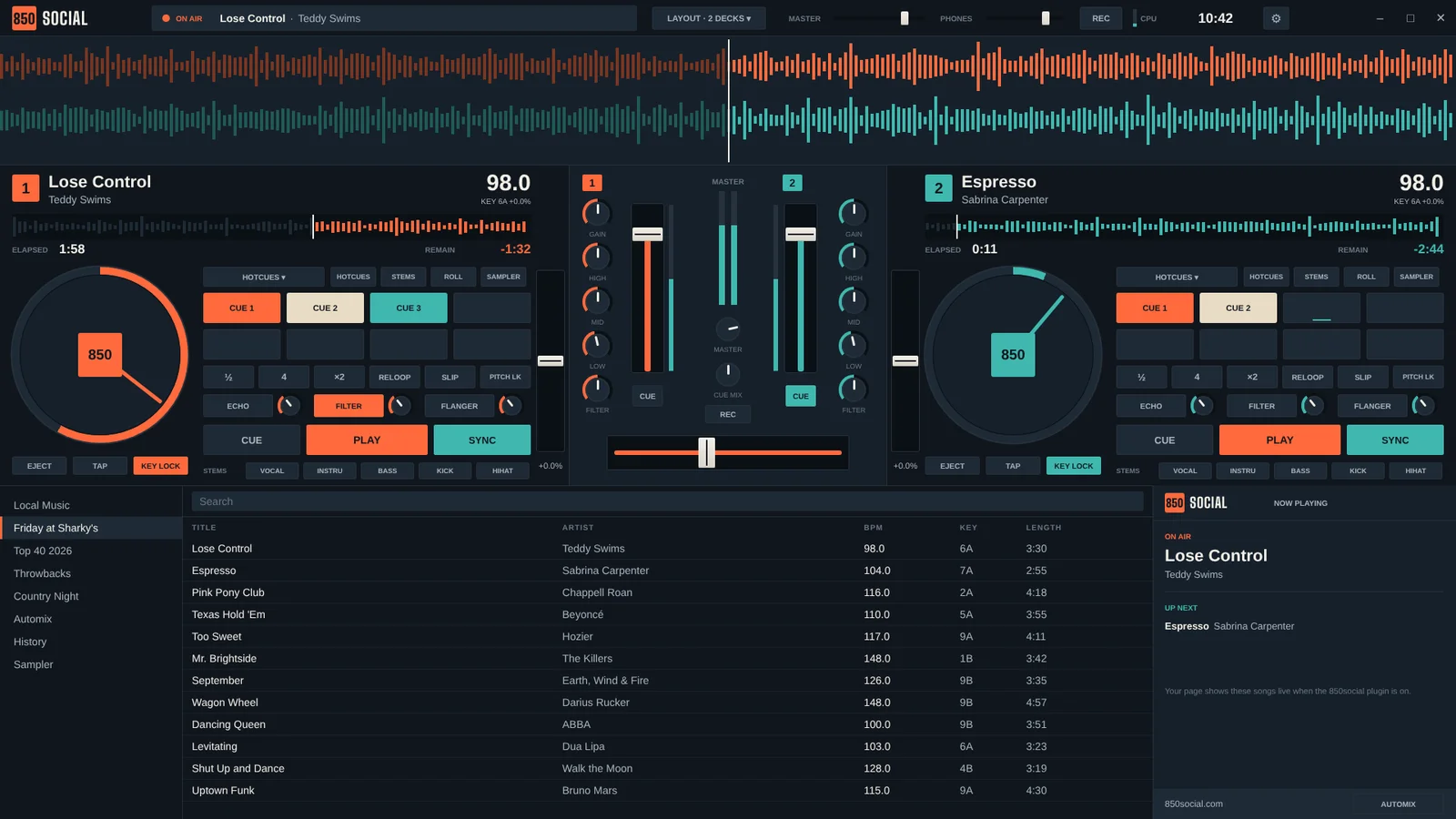
The 850social VirtualDJ skin with two decks, the mixer, the music browser and the on air panelThe 850social VirtualDJ skin with four decks

A full VirtualDJ layout in 850social colors. It’s optional, free, and works on any version of VirtualDJ.

  • 2 or 4 decks, switched from the LAYOUT button
  • A version for MacBook screens
  • Pads for hot cues, stems, loop roll and the sampler
  • Stem mutes, three effects per deck, slip and key lock
  • Your on air and up next songs on screen
  1. Put the zip, still zipped, in Documents/VirtualDJ/Skins.
  2. In VirtualDJ, go to Settings → Interface and pick 850social. On a MacBook, pick 850social 16x10.
Download the skin

Questions

+Does it cost anything?

No. The plugin, the helper app and the skin are free for DJs in the 850.

+What gets sent to 850social?

Only each song’s title and artist, and your next few songs if up next is on. Nothing from your music library, and nothing you only cue in your headphones or rehearse in Sandbox mode.

+Can I hide a song?

Yes. Your dashboard lists everything you played tonight, with Hide next to each song and Hide all at the top. To pause sending, flip the plugin’s Send switch off or close the helper.

+My computer warns me when I open it.

The downloads aren’t signed by Microsoft or Apple yet. On Windows, click More info → Run anyway. On a Mac, go to System Settings → Privacy & Security and click Open Anyway.

+Which should I use, plugin or helper?

If you have VirtualDJ Pro, the plugin. It’s faster and there’s nothing extra to open. On the free version, use the helper. VirtualDJ only loads start-up plugins on Pro.